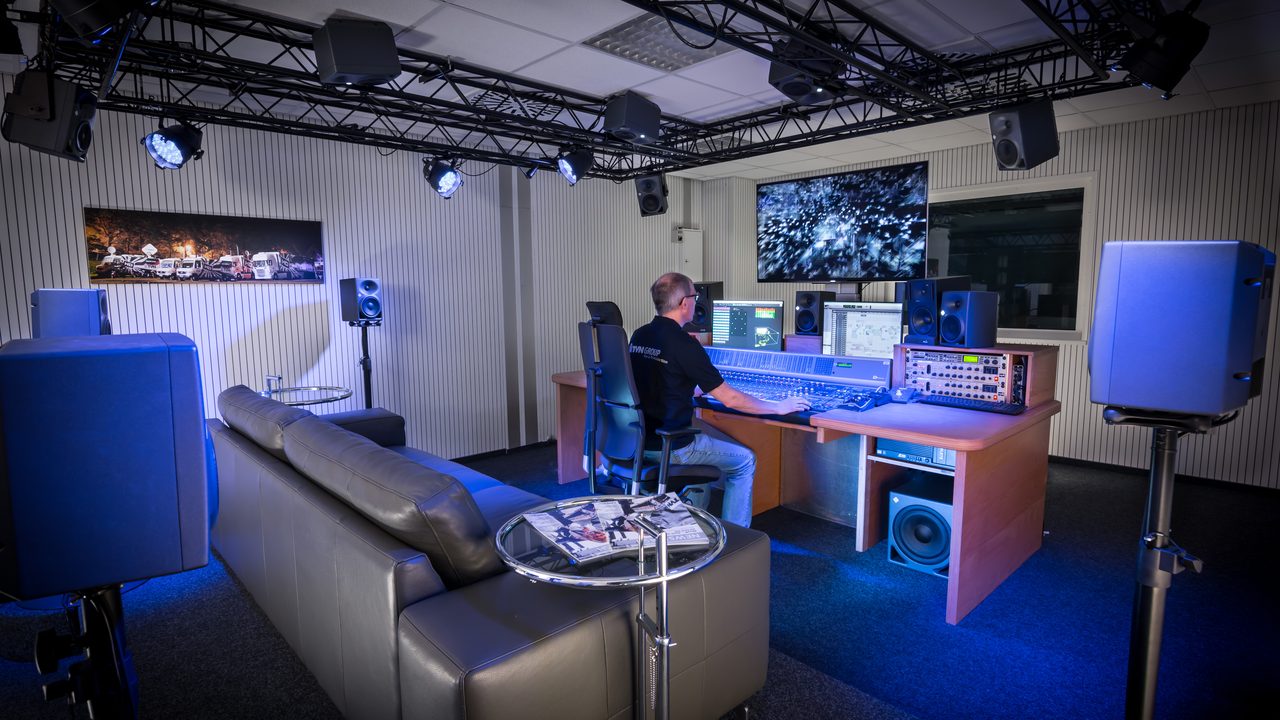
You have invested thousands of dollars into an exquisite OLED or Neo-QLED 4K television display, paired it with a sophisticated Dolby Atmos home theater soundbar or multi-channel surround sound receiver, and sat down on the couch expecting a breathtaking, theater-grade audio-visual experience. Yet as you stream your favorite flagship Netflix original, the visual image appears strangely soft, compressed artifacts swarm across dark shadowy corners, and your audio system outputs flat, lifeless stereo sound.
Here lies the inconvenient truth of modern digital streaming: possessing capable hardware does not guarantee high-fidelity playback. Netflix employs highly aggressive, dynamic adaptive-bitrate compression algorithms designed to save bandwidth. Furthermore, default TV factory presets, incorrect HDMI eARC cabling, and hidden account settings often throttle your stream to standard high-definition without your knowledge. In this comprehensive, technical master calibration guide, we walk you through every critical hardware, network, and software setting required to unlock reference-grade 4K Ultra HD, Dolby Vision, and immersive Dolby Atmos audio on Netflix.
1. The Three Mandatory Prerequisites for Reference 4K HDR Playback
Before adjusting advanced picture profiles or audio settings, you must satisfy three non-negotiable platform fundamentals:
- The Netflix Premium Subscription Tier: The standard Netflix plan (with or without ads) is hard-locked to 1080p Full HD resolution and standard 5.1 compressed audio. Only the top-tier Premium Plan unlocks 4K Ultra HD (3840 x 2160 pixels), High Dynamic Range (Dolby Vision and HDR10), and spatial Dolby Atmos audio streams.
- Certified HDMI 2.1 / 2.0b Infrastructure: If streaming through an external device (Apple TV 4K, Nvidia Shield TV Pro, Fire TV Stick 4K Max, or PlayStation 5) connected to an audio receiver or soundbar, you must use certified Ultra High Speed HDMI (48Gbps) cables. Legacy HDMI cables lack the bandwidth to transmit uncompressed 4K 60Hz HDR video alongside eARC object audio.
- Consistent 25 Mbps+ Network Throughput: Netflix’s adaptive player constantly monitors real-time packet latency. If your connection suffers jitter or drops below 15 Mbps, the player will silently downscale your stream to 1080p or 720p without alerting you on screen.
2. Step-by-Step Software & Account Configuration Guide
Step 1: Forcing “High” Data Usage in Netflix Account Settings
By default, Netflix sets playback quality to “Auto,” meaning the service aggressively compresses video to conserve internet data. To override this behavior and force maximum bitrate delivery:
- Open a desktop web browser, navigate to
Netflix.com, and log into your primary account. - Click your profile icon in the upper right corner and select Account.
- Scroll down to the Profile & Parental Controls section and click your individual profile name.
- Locate Playback Settings and click “Change.”
- Under “Data usage per screen,” switch the setting from “Auto” to High (Best video quality — uses up to 7 GB per hour for 4K Ultra HD).
- Click Save. Note: You must repeat this adjustment individually for each profile on your account.
Step 2: Calibrating Television HDMI Input Ports for Full HDR Bandwidth
Modern 4K televisions from Sony, LG, Samsung, and TCL do not enable full HDR bandwidth on their HDMI ports by default to maintain legacy device compatibility. You must manually unlock the port bandwidth in your TV’s system settings:
- LG OLED / QNED TVs: Go to Settings > General > Devices > HDMI Settings and toggle HDMI Deep Color to “4K” or “On” for the input port connected to your streaming box or soundbar.
- Sony Bravia TVs: Navigate to Settings > Channels & Inputs > External Inputs > HDMI Signal Format and switch the port from “Standard Format” to Enhanced Format (Dolby Vision).
- Samsung QLED TVs: Go to Settings > General > External Device Manager and enable Input Signal Plus for all active HDMI inputs.
Step 3: Disabling Motion Smoothing & Calibrating TV Picture Profiles
Nothing destroys cinematic cinematography faster than motion smoothing—often marketed as “TruMotion,” “Auto Motion Plus,” or “Action Smoothing.” This feature inserts fake, computer-interpolated intermediate frames, giving high-budget Hollywood movies the cheap, jittery aesthetic of a daytime soap opera (the “Soap Opera Effect”).
To eliminate this, select your TV picture preset as either Filmmaker Mode or Cinema / Calibrated Mode. These certified modes automatically turn off all artificial motion smoothing, set color temperature to the industry standard D65 (warm 2), and preserve the director’s authentic 24 frames-per-second cinematic frame rate.
3. Audio Engineering: Unlocking True Dolby Atmos Spatial Sound
Experiencing true Dolby Atmos requires precise signal routing between your streaming source, television display, and audio sound system:
The eARC vs. ARC Bottleneck Explained
Standard HDMI ARC (Audio Return Channel) is an aging standard with limited digital bandwidth; it can only transmit lossy, compressed Dolby Digital Plus (E-AC-3) containing Atmos metadata. Conversely, HDMI eARC (Enhanced Audio Return Channel) boasts colossal 37 Mbps bandwidth, capable of transmitting uncompressed 24-bit 192kHz multi-channel object audio. Ensure your soundbar is physically plugged into the dedicated HDMI port labeled HDMI eARC on your TV, and verify that “eARC Support” is toggled to “On” in your TV audio settings.
Selecting the Correct Audio Stream Inside the Netflix Player
When you start playing a title on Netflix, the player may default to stereo or standard 5.1 audio depending on your device handshake. While the movie is playing, pause the video, click the Audio & Subtitles dialog bubble at the bottom of the screen, and ensure you have selected English [Original] (Dolby Atmos) or Dolby Digital 5.1 rather than basic stereo.
4.
Step 4: Calibrating Apple TV 4K “Match Content” Settings
If you utilize an Apple TV 4K streaming box, the default tvOS system settings force continuous HDR output, causing standard dynamic range (SDR) menus and older movies to appear over-saturated and artificially bright. To force bit-perfect output:
- Navigate to Settings > Video and Audio on your Apple TV.
- Set default format to 4K SDR (60Hz or 59.94Hz).
- Scroll down and select Match Content.
- Toggle Match Dynamic Range to On (your TV will automatically switch into Dolby Vision or HDR10 only when HDR content plays).
- Toggle Match Frame Rate to On (forces your TV refresh rate to match native 24.000 fps or 23.976 fps cinematic film).
Step 5: Solving Audio Latency & Lip-Sync Delays in Home Theater Receivers
Because 4K HDR video requires intensive digital processing by your television’s display processor, video frames can take 50 to 120 milliseconds longer to render than raw digital audio, causing the spoken audio dialogue to lead the actor’s mouth movements. To fix this:
- Navigate to your AV receiver or soundbar menu and locate the setting labeled A/V Sync or Audio Delay.
- Adjust the delay slider in 10ms increments (typically setting audio delay between +40ms and +80ms restores perfect synchronization).
- Verify that your TV’s digital audio output format is set to Pass-Through or Bitstream rather than PCM or Auto, ensuring audio data reaches your soundbar without internal conversion.
4. Advanced Codec Physics: How Netflix Delivers 4K Over Low Bandwidth
To deliver millions of simultaneous 4K video streams without crashing internet service providers, Netflix engineers pioneered revolutionary video compression technologies:
- Per-Title and Per-Shot Encoding Optimization: Rather than encoding every movie at a fixed flat bitrate, Netflix’s machine learning encoders analyze each visual shot individually. A high-motion explosion scene in Extraction is allocated a high 18 Mbps bitrate to eliminate compression artifacts, while a slow conversation in a dark room in The Crown is encoded at 6 Mbps with pristine clarity, saving global network bandwidth.
- The Transition to Royalty-Free AV1 Codecs: Netflix is progressively upgrading its streaming delivery from legacy H.264 and HEVC (H.265) to next-generation open-source AV1 (AOMedia Video 1) codecs. AV1 achieves 30% higher compression efficiency than HEVC, allowing compatible smart TVs to stream reference 4K HDR imagery over modest broadband connections.
Diagnostic Diagnostics: How to Check Secret Bitrate & Resolution Stats
How can you definitively verify that your TV is actually receiving a full 3840 x 2160 4K stream rather than an upscaled 1080p feed? Netflix includes hidden developer diagnostic overlays across various platforms:
The PC / Mac Browser Developer Shortcut
While streaming Netflix on Google Chrome, Microsoft Edge, or Safari, press Ctrl + Alt + Shift + D (on Windows) or Control + Option + Shift + D (on Mac) on your keyboard. This brings up an on-screen technical HUD displaying real-time metrics:
- Playing Resolution: Displays exact real-time pixels (e.g.,
3840x2160for true 4K). - Video Bitrate: Shows current video throughput in kbps (a healthy 4K stream ranges between
11,000 kbps and 18,000 kbps). - Framerate: Confirms whether the stream is running at native
23.976 fpsor60 fps. - Audio Track: Confirms active audio codec (e.g.,
audio/mp4; codecs="mp4a.40.2"or Atmos object stream).
The Smart TV “Info” Button Technique
On select smart TV remote controls (such as Sony Bravia or older LG remotes), pressing the physical Info button while streaming on the Netflix app will display a clean translucent text overlay in the upper-left corner of the display showing resolution (2160p), current connection speed (15.25 Mbps), and elapsed runtime.
5. Hardware Compatibility Matrix: Which Devices Support 4K HDR & Atmos?
Review the hardware compatibility breakdown across leading streaming hardware platforms:
| Streaming Hardware | Max Resolution | Dolby Vision | HDR10 / HDR10+ | Dolby Atmos | Overall Fidelity Rank |
|---|---|---|---|---|---|
| Apple TV 4K (3rd Gen) | 4K UHD (2160p) | YES | YES (HDR10+) | YES (Spatial Audio) | ⭐⭐⭐⭐⭐ (Gold Standard) |
| Nvidia Shield TV Pro | 4K UHD (2160p) | YES | YES | YES (Passthrough) | ⭐⭐⭐⭐⭐ (Reference Home Theater) |
| Fire TV Stick 4K Max | 4K UHD (2160p) | YES | YES (HDR10+) | YES | ⭐⭐⭐⭐ (Best Value) |
| Roku Ultra (4K) | 4K UHD (2160p) | YES | YES | YES | ⭐⭐⭐⭐ (Solid Experience) |
| Chrome / Edge (PC Browser) | 720p (Chrome) / 4K (Edge) | NO | HDR10 (Edge only) | NO (Stereo/5.1) | ⭐⭐ (Restricted by DRM) |
6. Frequently Asked Questions (FAQ) Regarding 4K & Atmos Streaming
Q1: Why does Google Chrome on Windows or Mac only stream Netflix in 720p or 1080p?
Answer: This limitation is enforced by digital rights management (DRM) anti-piracy protections. Google Chrome and Mozilla Firefox utilize software-based Widevine Level 3 DRM, which Netflix restricts to a maximum of 720p to prevent screen recording. To stream in true 4K on a Windows PC, you must use Microsoft Edge or the official Netflix Windows App, and your monitor must support HDCP 2.2 with a capable Intel 7th Gen+ or AMD Ryzen processor.
Q2: Does Netflix stream uncompressed lossless Dolby TrueHD Atmos like 4K Blu-ray discs?
Answer: No streaming service in the world (including Netflix, Apple TV+, or Disney+) streams uncompressed lossless Dolby TrueHD Atmos; doing so would require an enormous 30 to 40 Mbps audio bandwidth alone. Netflix delivers Dolby Atmos wrapped inside an efficient, lossy Dolby Digital Plus (E-AC-3) container at a high 768 kbps bitrate, which delivers exceptional spatial height effects while remaining bandwidth efficient.
Q3: Why does my TV display look too dark when watching Dolby Vision content?
Answer: Dolby Vision is engineered to reflect authentic theatrical lighting, meaning dimly lit scenes (such as night sequences in The Batman or Stranger Things 4) are intentionally dark to preserve shadow detail. However, if your TV is in a sunlit room, the image can be washed out. Most modern TVs offer two Dolby Vision presets: Dolby Vision Dark (for pitch-black home theaters) and Dolby Vision Bright / IQ (which uses your TV’s ambient light sensor to boost mid-tones for bright daytime viewing).
7. Conclusion: The Joy of Pristine Home Theater Cinema
Modern streaming technology has put the visual and acoustic power of a commercial cinema inside our living rooms—but only if you take the time to configure your signal chain properly. By setting your account data usage to High, enabling HDMI Deep Color on your inputs, utilizing HDMI eARC audio routing, and switching your picture profile to Filmmaker Mode, you unlock the reference-grade master image that visionary filmmakers and sound engineers intended you to experience. Enjoy the show in true 4K HDR glory!
Step 6: Enhancing Dialogue Clarity with Center-Channel & Night Mode EQ
One of the most persistent frustrations among modern television viewers is inaudible dialogue muffled beneath thunderous musical scores and sound effects. To permanently solve speech clarity without constantly riding the volume remote:
- Activate Center-Channel Dialogue Boost: On multi-channel soundbars (3.1 or 5.1 systems), navigate to your audio settings and increase the Center Channel Level by +3dB to +5dB. Over 80% of spoken movie dialogue is isolated strictly to the center speaker.
- Enable Dynamic Range Compression (Night Mode / Loudness Normalization): Features labeled “Night Mode,” “Auto Volume,” or “Clear Voice” compress the dynamic audio window. They automatically lower sudden deafening explosions while boosting whispered conversations, allowing you to watch movies late at night without disturbing family members.